

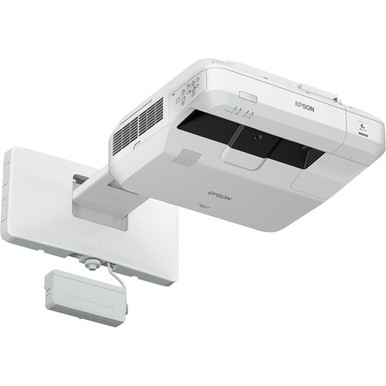
This Epson BL-1460UI Setup Guide and Buying Considerations resource addresses a practical AV problem: deciding whether the projector fits the room before the mount, cabling, and operating workflow are locked. The supplied facts give you three firm anchors for the BL-1460UI: 4,400-lumen brightness, Full HD resolution, and Wi-Fi. Those details narrow the field, but they cannot replace measurements from the installation site.
Churches, schools, and conference room teams should evaluate the complete deployment. That means checking image size, ambient light, viewing distance, signal paths, network policies, audio routing, and the planned interaction method. Installers also need confirmed throw geometry and mounting details before work begins.
This guide turns those questions into a setup and purchasing process. It also compares the BL-1460UI with four supplied Epson alternatives: the PowerLite 875E, BrightLink 870Ei, BrightLink 780Ei, and LightScene EV-110. Use the comparison to identify viable candidates, then consult each linked product page and current installation documentation before approving the design.
Products at a Glance
- Option 1: Epson BrightLink Pro 1460UI Interactive WUXGA 1080p 3LCD Projector with Speaker 4400 Lumens Wi-Fi
- For rooms whose approved design prioritizes ultra-sho…: Epson PowerLite 875E 5 Ultra Short Throw Display with 4K Enhancement (V11HC04120)
- For buyers seeking a BrightLink candidate with ultra-…: Epson BrightLink 870Ei Ultra Short Throw Interactive Display with 4K Enhancement (V11HC03020)
- For procurement teams comparing BrightLink ultra-shor…: Epson BrightLink 780Ei Ultra Short Throw Interactive Display with 4K Enhancement (V11HC10020)
- For designs that explicitly accept 2,200-lumen output…: Epson LightScene EV-110 2200-Lumen WXGA Laser 3LCD Projector (V11HA22020)
Quick Comparison Table
| Feature | Epson BrightLink Pro 1460UI Interactive WUXGA 1080p 3LCD Projector with Speaker 4400 Lumens Wi-Fi | Epson PowerLite 875E 5 Ultra Short Throw Display with 4K Enhancement (V11HC04120) | Epson BrightLink 870Ei Ultra Short Throw Interactive Display with 4K Enhancement (V11HC03020) | Epson BrightLink 780Ei Ultra Short Throw Interactive Display with 4K Enhancement (V11HC10020) | Epson LightScene EV-110 2200-Lumen WXGA Laser 3LCD Projector (V11HA22020) |
|---|---|---|---|---|---|
| Brightness | 4400 Lumens | 2200 lumens | |||
| Resolution | Full HD | 4K | 4K | 4K | WXGA |
| Best For | Buyers whose room design calls for 4,400-lumen output, Full HD resolution, and Wi-Fi, subject to site and workflow verification. | Rooms whose approved design prioritizes ultra-short-throw placement and a listed 4K resolution class. | Buyers seeking a BrightLink candidate with ultra-short-throw geometry and a listed 4K resolution class. | Procurement teams comparing BrightLink ultra-short-throw and 4K candidates through model-specific documentation. | Designs that explicitly accept 2,200-lumen output and WXGA resolution after room and placement testing. |
| Throw Type | Ultra short throw | Ultra short throw | Ultra short throw | ||
| Smart Features | Wi-Fi | ||||
| Recommended Buyer | Buyers whose room design calls for 4,400-lumen output, Full HD resolution, and Wi-Fi, subject to site and workflow verification. | Rooms whose approved design prioritizes ultra-short-throw placement and a listed 4K resolution class. | Buyers seeking a BrightLink candidate with ultra-short-throw geometry and a listed 4K resolution class. | Procurement teams comparing BrightLink ultra-short-throw and 4K candidates through model-specific documentation. | Designs that explicitly accept 2,200-lumen output and WXGA resolution after room and placement testing. |
Product Images
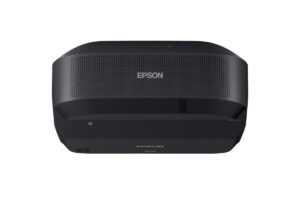
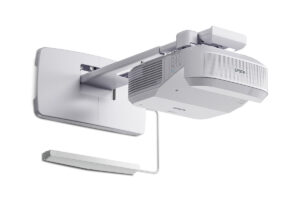
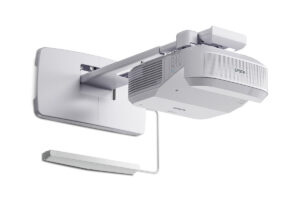
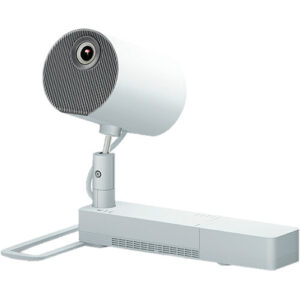
Projector Options from AudioVideoNation
1. Epson BrightLink Pro 1460UI Interactive WUXGA 1080p 3LCD Projector with Speaker 4400 Lumens Wi-Fi
Who should compare it: Buyers whose room design calls for 4,400-lumen output, Full HD resolution, and Wi-Fi, subject to site and workflow verification.
Why it belongs here: It is the exact projector covered by this guide and the only supplied option with 4,400-lumen brightness, Full HD resolution, and Wi-Fi listed together.
SKU: BL-1460UI
Key Features
- 4,400-lumen listed brightness
- Full HD listed resolution
- Wi-Fi listed as a smart feature
- SKU BL-1460UI for procurement matching
Things to Consider
Confirm image-size geometry, mounting requirements, connections, wireless functions, interaction method, required accessories, and audio routing before design approval.
2. Epson PowerLite 875E 5 Ultra Short Throw Display with 4K Enhancement (V11HC04120)
Who should compare it: Rooms whose approved design prioritizes ultra-short-throw placement and a listed 4K resolution class.
Why it belongs here: It gives buyers an Epson alternative with ultra short throw and 4K documented in the supplied product facts.
SKU: PL-875E
Key Features
- Ultra short throw format
- 4K listed resolution
- SKU PL-875E for procurement matching
Things to Consider
Verify brightness, exact image-size geometry, connectivity, audio, control, and any interaction requirement before treating it as a BL-1460UI substitute.
3. Epson BrightLink 870Ei Ultra Short Throw Interactive Display with 4K Enhancement (V11HC03020)
Who should compare it: Buyers seeking a BrightLink candidate with ultra-short-throw geometry and a listed 4K resolution class.
Why it belongs here: It adds a BrightLink option with ultra short throw and 4K listed, making it relevant to close-to-surface installation comparisons.
SKU: BL-870Ei
Key Features
- Ultra short throw format
- 4K listed resolution
- SKU BL-870Ei for exact model matching
Things to Consider
Confirm brightness, supported interaction method, source compatibility, mounting hardware, included items, audio, and network requirements in current documentation.
4. Epson BrightLink 780Ei Ultra Short Throw Interactive Display with 4K Enhancement (V11HC10020)
Who should compare it: Procurement teams comparing BrightLink ultra-short-throw and 4K candidates through model-specific documentation.
Why it belongs here: It is another supplied BrightLink alternative with ultra short throw and 4K listed for requirement-based comparison.
SKU: BL-780Ei
Key Features
- Ultra short throw format
- 4K listed resolution
- SKU BL-780Ei for exact model matching
Things to Consider
Compare its verified brightness, interaction workflow, connectivity, image geometry, audio, control options, and included items with project requirements.
5. Epson LightScene EV-110 2200-Lumen WXGA Laser 3LCD Projector (V11HA22020)
Who should compare it: Designs that explicitly accept 2,200-lumen output and WXGA resolution after room and placement testing.
Why it belongs here: It provides a distinct supplied specification profile with 2,200-lumen brightness and WXGA resolution.
SKU: EV-110
Key Features
- 2,200-lumen listed brightness
- WXGA listed resolution
- SKU EV-110 for procurement matching
Things to Consider
Its brightness and resolution differ from the BL-1460UI. Confirm placement geometry, connectivity, mounting, audio, and workflow requirements before selection.
Epson BrightLink Pro 1460UI Interactive WUXGA 1080p 3LCD Projector with Speaker 4400 Lumens Wi-Fi vs Epson PowerLite 875E 5 Ultra Short Throw Display with 4K Enhancement (V11HC04120): Main Differences
- Choose Epson BrightLink Pro 1460UI Interactive WUXGA 1080p 3LCD Projector with Speaker 4400 Lumens Wi-Fi if Buyers whose room design calls for 4,400-lumen output, Full HD resolution, and Wi-Fi, subject to site and workflow verification..
- Choose Epson PowerLite 875E 5 Ultra Short Throw Display with 4K Enhancement (V11HC04120) if Rooms whose approved design prioritizes ultra-short-throw placement and a listed 4K resolution class..
- Choose Epson BrightLink 870Ei Ultra Short Throw Interactive Display with 4K Enhancement (V11HC03020) if Buyers seeking a BrightLink candidate with ultra-short-throw geometry and a listed 4K resolution class..
- Choose Epson BrightLink 780Ei Ultra Short Throw Interactive Display with 4K Enhancement (V11HC10020) if Procurement teams comparing BrightLink ultra-short-throw and 4K candidates through model-specific documentation..
- Choose Epson LightScene EV-110 2200-Lumen WXGA Laser 3LCD Projector (V11HA22020) if Designs that explicitly accept 2,200-lumen output and WXGA resolution after room and placement testing..
Epson BL-1460UI deployment fit: start with the room
Begin with the intended image, not the mounting hardware. Record the largest image size your users need, the distance to the farthest viewer, the smallest text they will read, and the amount of uncontrolled light reaching the display surface. The BL-1460UI has a listed brightness of 4,400 lumens, but that number alone cannot establish whether an image will remain readable in your room. Surface characteristics, image size, ambient light, and content all affect the result.
Full HD is the listed resolution. Compare it with the material people will display, such as presentations, spreadsheets, worship lyrics, learning applications, or conferencing layouts. Use actual examples during acceptance testing. A resolution label cannot tell you whether the smallest text in a real document will be comfortable from the back row.
Deployment fit also covers movement around the image. Note presenter positions, seating, doors, aisles, and any equipment that may interrupt the light path. If the planned workflow depends on direct interaction, confirm that intended users can reach the working area safely. Obtain the current throw chart and mounting instructions before marking attachment points. Brand or product-family names are not substitutes for measured placement geometry.
Site survey for an Epson BrightLink Pro 1460UI installation
A useful site survey produces a drawing that another installer can follow. Mark the desired image boundaries, available mounting locations, nearby power, source-equipment position, cable routes, network access, and room-audio connection. Photograph obstructions and record measurements. Confirm the mounting surface and permissible load with the party responsible for the building before hardware is selected.
Map the user workflow next. List every planned source and how people expect to switch between them. A fixed room computer, guest laptop, conferencing system, and wireless source can impose different connection and support requirements. Confirm the BL-1460UI inputs and accepted signal formats against current product documentation rather than assuming that a familiar connector or adapter will work.
Treat interaction as its own design question. Define whether users need annotation, pen input, touch, whiteboarding, or simple image display. Then verify the required accessories, calibration process, supported source environment, and usable interaction area. Make the same decision for sound. Determine whether audio will use a separate room system, and confirm the necessary routing and control path. These checks prevent a projector purchase from becoming an unplanned cabling, software, or accessory project.
Signal, Wi-Fi, control, and audio planning
Wi-Fi is listed for the BL-1460UI, but the presence of Wi-Fi does not define the supported presentation workflow. Confirm which source devices, applications, network bands, security methods, and user permissions apply. Schools and businesses should involve the network team early. Guest access, enterprise authentication, segmented networks, and software deployment can change whether a wireless workflow is practical.
Plan a wired signal path when dependable room access matters. Verify the projector connections, source outputs, adapters, cable standards, and supported transmission distance in the current documentation. Long runs may require a different transport design, but the correct choice depends on the room and signal requirements. Test the entire path with the actual source equipment before walls or ceilings are closed.
Control deserves the same attention. Decide how users will turn the system on, select a source, adjust audio, and shut it down. If scheduling, remote monitoring, or integration with a room-control system is required, confirm those functions and protocols before purchase. For audio, document the destination, volume-control point, and behavior during both wired and wireless presentations. A simple flow diagram can expose missing adapters, control steps, or ownership decisions before installation day.
Epson BL-1460UI setup sequence
Use a staged process so placement, signal, and workflow problems appear while they are still easy to correct.
1. Freeze the requirements. Approve the target image area, viewing conditions, source list, interaction needs, audio path, network policy, and user-control method.
2. Bench-test the planned system. Connect the actual source equipment, adapters, and network environment when possible. Confirm that required content can be displayed and that the operating steps make sense to the support team.
3. Verify geometry on site. Use current Epson installation documentation to calculate placement for the approved image size. Mark the image boundary and mounting location only after checking for physical obstructions.
4. Install the infrastructure. Have qualified personnel fit the approved mount, power, signal, network, audio, and control paths under the requirements that apply to the site. Label both ends of every permanent cable.
5. Establish the image physically. Set placement and alignment before relying on electronic correction. Check focus and framing across the full display area using suitable test content.
6. Configure sources and Wi-Fi. Apply only settings supported by the current documentation and the organization's network policy. Test authorized users as well as the support account.
7. Calibrate the planned interaction workflow. If interaction is required, follow the applicable Epson procedure and test accuracy across the usable area with the intended source environment.
8. Record the result. Save approved settings, cable routes, network ownership, support contacts, and recovery steps. That record makes future service and room resets far easier.
Commissioning an interactive projector workflow
Commission the room against written acceptance criteria. Test it with the lights and window coverings in the states users will encounter. Display the smallest normal text, detailed presentations, video, and conferencing layouts used by the organization. Ask viewers in the farthest seats to confirm readability. The 4,400-lumen and Full HD listings provide planning inputs, while the room test confirms the actual deployment.
If interaction is part of the design, test every required action. Check the intended working area, corners, repeated calibration, source changes, and recovery after a restart. Include each supported user device in the test plan. Avoid assuming that success with one computer proves every planned workflow.
Test Wi-Fi after a cold start and under the access rules users will face. Confirm who handles credentials, application updates, and connection support. Exercise the audio and control paths at the same time so source switching does not create a silent presentation or confusing control state.
Finish with a short handoff. Show staff how to start, present, switch sources, end a session, and report a fault. Leave a room-specific quick guide that matches the installed configuration. Good documentation limits improvised changes and gives support teams a known baseline.
Ultra short throw projector comparison: four Epson alternatives
Use the room requirements as a gate before comparing model names. The BL-1460UI is the supplied option with 4,400-lumen brightness, Full HD resolution, and Wi-Fi listed together. Keep it under consideration when those facts match the design, then verify placement, connections, interaction, and audio against current documentation.
The Epson PowerLite 875E has ultra short throw and 4K listed in the supplied facts. It is a relevant alternative when close-to-surface placement and that resolution class are requirements. Confirm brightness, image-size geometry, connectivity, audio, and user workflow before treating it as a direct substitute.
The Epson BrightLink 870Ei and BrightLink 780Ei also have ultra short throw and 4K in their supplied facts. The available data does not establish the functional differences between these two entries. Compare their current product documentation for interaction method, supported sources, brightness, mounting requirements, included items, and control options. Procurement teams should use the exact SKUs, BL-870Ei and BL-780Ei, to avoid mixing their records.
The Epson LightScene EV-110 takes a different path with 2,200-lumen brightness and WXGA resolution. Keep it on the list only if the room requirements accept those ratings and its verified placement geometry. Do not infer suitability from its Epson branding.
Resolution labels should trigger another check, not end the comparison. Confirm the native display behavior, accepted input formats, and meaning of any enhancement terminology on the current product page. The winning candidate is the one that clears every must-have requirement with documented evidence.
Stock and availability plus price-to-performance
Use each linked AudioVideoNation product page for live commerce details. For stock and availability planning, confirm the required quantity, expected fulfillment timing, delivery destination, and whether every unit must be the same SKU. Ask how substitutions are handled before approving one. A near-looking replacement can change mounting, cabling, image geometry, or training.
Calculate price-to-performance from the total installed cost. Include the projector, approved mount, signal transport, adapters, network work, audio integration, interaction accessories, labor, training, and any service coverage the organization requires. No page price can capture that full scope. Compare the resulting total with measurable outcomes: approved image size, readable content, required source support, interaction workflow, and manageable operation.
Create a decision sheet with must-pass and preference columns. Placement geometry, room brightness, resolution, required interaction, connectivity, network approval, audio routing, and delivery timing belong in the must-pass group when the project depends on them. Convenience items can remain preferences. Record the source for every confirmed detail.
Before issuing a purchase order, revisit the site drawing and bill of materials with the installer and system owner. Confirm the exact product ID and SKU, then check the linked page for current commercial information. This final gate catches model substitutions and scope gaps while changes are still manageable.
Related AudioVideoNation Links
- Browse Projector at AudioVideoNation
- Epson BrightLink Pro BL-1460UI product page
- Epson PowerLite 875E product page
- Epson BrightLink 870Ei product page
- Epson BrightLink 780Ei product page
Product Information Sources
- Epson BrightLink Pro 1460UI Interactive WUXGA 1080p 3LCD Projector with Speaker 4400 Lumens Wi-Fi product information
- Epson PowerLite 875E 5 Ultra Short Throw Display with 4K Enhancement (V11HC04120) product information
- Epson BrightLink 870Ei Ultra Short Throw Interactive Display with 4K Enhancement (V11HC03020) product information
- Epson BrightLink 780Ei Ultra Short Throw Interactive Display with 4K Enhancement (V11HC10020) product information
- Epson LightScene EV-110 2200-Lumen WXGA Laser 3LCD Projector (V11HA22020) product information
FAQ
What brightness and resolution are listed for the Epson BL-1460UI?
The supplied product facts list the Epson BL-1460UI at 4,400 lumens with Full HD resolution. Use those ratings for initial screening, then test the planned image size and real content under the room's expected lighting.
Is 4,400 lumens enough for a church, classroom, or conference room?
A 4,400-lumen rating alone cannot confirm room suitability. Image size, ambient light, display surface, viewing distance, and content must be assessed during the site survey and commissioning test.
Can the BL-1460UI be planned as an ultra-short-throw installation?
Confirm the BL-1460UI throw chart before treating it as an ultra-short-throw installation. Use current mounting documentation and measured image geometry rather than inferring placement from its product family.
Does the BL-1460UI's listed Wi-Fi eliminate signal cabling?
No, listed Wi-Fi does not by itself eliminate the need for a planned signal path. Verify supported wireless sources, network security, applications, and user permissions, and consider a tested wired path where presentation continuity matters.
Which supplied Epson alternatives list ultra short throw and 4K?
The supplied facts list ultra short throw and 4K for the PowerLite 875E, BrightLink 870Ei, and BrightLink 780Ei. Choose among them only after confirming brightness, interaction, connectivity, mounting, audio, and control requirements.
How should buyers evaluate BL-1460UI price-to-performance and availability?
Buyers should compare total installed cost with documented room outcomes and use the linked product page for live commerce details. Include mounting, cabling, accessories, integration, labor, training, required service coverage, quantity, and fulfillment timing in the purchase review.
Conclusion
Use this Epson BL-1460UI Setup Guide and Buying Considerations comparison to match documented specifications to the room and installation requirements. Review the linked product pages for current purchase details before ordering.
Products Used
| SKU | Product Name | URL |
|---|---|---|
| BL-1460UI | Epson BrightLink Pro 1460UI Interactive WUXGA 1080p 3LCD Projector with Speaker 4400 Lumens Wi-Fi | View product |
| PL-875E | Epson PowerLite 875E 5 Ultra Short Throw Display with 4K Enhancement (V11HC04120) | View product |
| BL-870Ei | Epson BrightLink 870Ei Ultra Short Throw Interactive Display with 4K Enhancement (V11HC03020) | View product |
| BL-780Ei | Epson BrightLink 780Ei Ultra Short Throw Interactive Display with 4K Enhancement (V11HC10020) | View product |
| EV-110 | Epson LightScene EV-110 2200-Lumen WXGA Laser 3LCD Projector (V11HA22020) | View product |